
How to Clear Cache on Pluto TV in Amazon Firestick?
Last updated July 8, 2021

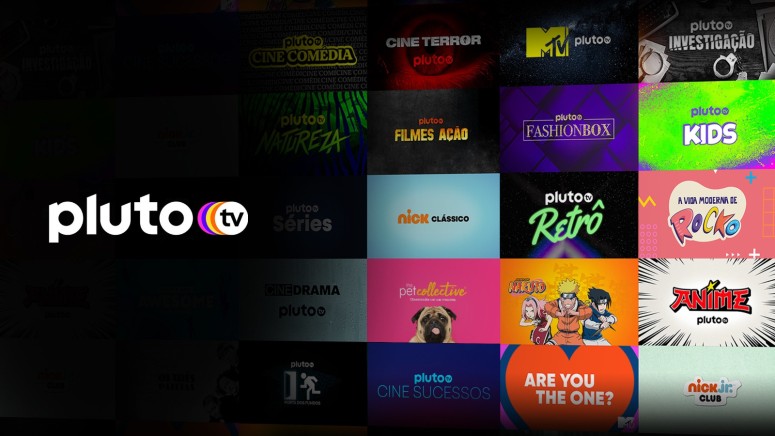
Pluto TV is an awesome service that's available for free on lots of platforms, including the Amazon Fire TV or Fire Stick. Sometimes, however, issues occur, so it's best to clear the cache on Pluto TV in Amazon Firestick. So, let's see how you can do this.
The service is available on pretty much any platform you can think of, allowing people to view free content in so many ways.
However, if you are having difficulty enjoying Pluto TV on your Amazon Fire TV stick, you can clear the cache and data from your Pluto TV app using the following steps.
- You're going to have to start by going to "Settings" while the Fire TV Stick is on.
- Tap on "Apps" next.
- Then, you have to navigate to "Manage All Applications," which you'll easily find in the menu.
- Find the Pluto TV app on the list.
- Once you do, tap the button to "Clear cache & data."
- Next, you have to reboot the Pluto TV app.
You're done! This should have corrected any loading problems and improve your viewing experience. Hopefully, any issues that may have been there won't persist after you've cleared the cache. Should you have any more problems, it's always best to contact the Pluto TV customer support team, as there may be a different type of problem there.
Related





Get expert insights on threats, breaches, scams, and security trends — delivered every Monday.
Most Popular

Get expert insights on threats, breaches, scams, and security trends — delivered every Monday.
Most Popular